


Murideo Fox & Hound ayuda a los integradores AV a localizar problemas
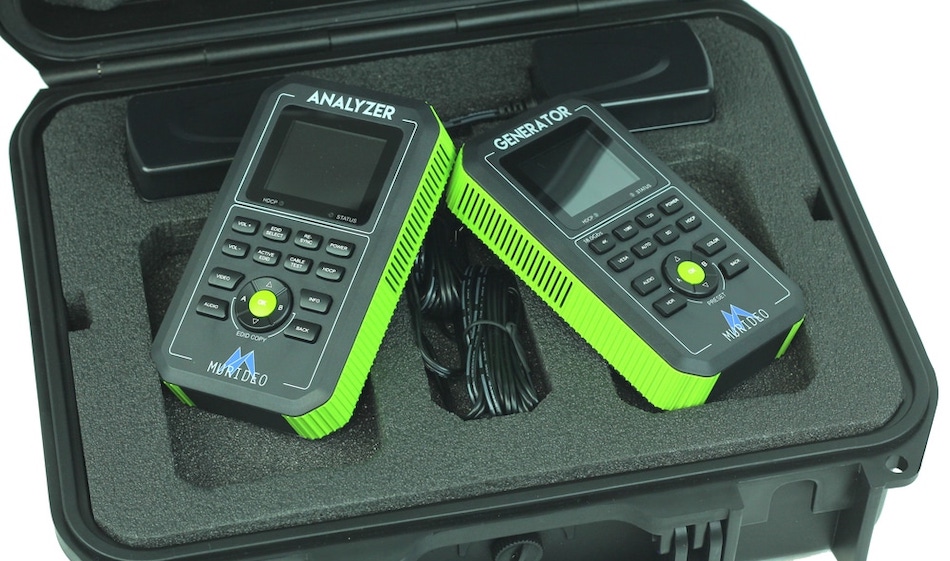
Compuesto por un generador y analizador, Murideo Fox & Hound, available through AVIT Vision, ayuda y mejora en rapidez y tiempo la labor de los integradores AV.
La localización de problemas en un sistema audiovisual puede ser una pesadilla que provoque má de cabeza a los integradores. Problemas como: puede que el sistema deba ser 4K, pero la pantalla sólo produce una imagen 1.080p; quizá el sistema deba mostrar contenido HDR, pero lo hace como SDR; no hay señal en la pantalla o la imagen parpadea, son algunos ellos.
La resolución de los problemas relacionados con HDMI terminan costando mucho tiempo a los integradores audiovisuales. In this sense, Murideo ha creado una herramienta que ayuda en esta frustrante situación: Fox & Hound HDMI Troubleshooting Kit, available through AVIT Vision.
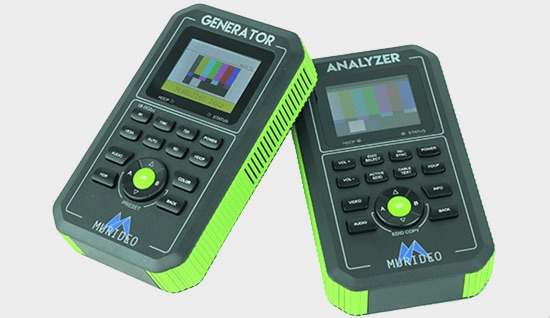 Este sistema se compone de un generador y analizador (each of 18 Gbps ) de muy fácil uso, pequeño tamaño y portátil, que aporta al instalador AV los principales datos que necesita para configurar o solucionar los problemas de un sistema, todo ello en un sencillo sistema de menús.
Se trata de un verdadero kit de localización de averías punto a punto y, aunque es una herramienta técnica, no se necesita ser ingeniero para utilizarla.
Una de las características más populares del kit Fox & Hound es la posibilidad de utilizar varios EDID integrados para emular una pantalla o un dispositivo repetidor. Incluso puede copiar el EDID de una pantalla para solucionar problemas en el rack que podría estar en otra sala diferente.
Otra de sus ventajas es la capacidad de probar los cables HDMI para comprobar su funcionalidad y ancho de banda, ya que aquellos que están defectuosos o con un bajo ancho de banda son una razón común de muchos fallos de los sistemas.
Fox & Hound ayuda a solucionar los siguientes problemas habituales de manera sencilla y rápida (see attached video):
No se visualiza la imagen
Utilizando el generador en lugar de la fuente, inyecte una señal de vídeo en el sistema. Coloque el generador en el lugar de cada componente hasta que identifique qué componente no pasa la señal.
Utilizando el analizador en lugar de la pantalla, compruebe en la pantalla LCD del analizador si hay señal o no. Dependiendo de los resultados, ahora puede tomar una decisión fundamentada sobre lo que debe solucionar a continuación.
Sin HDR
Utilizando el generador en lugar de la fuente, inyecte una señal HDR en el sistema. Coloque el generador en el lugar de cada componente hasta que descubra cuál es el componente que no pasa el HDR.
Utilizando el analizador en lugar de la pantalla, analice la información de la señal. Si el HDR no está presente, coloque el analizador en el lugar de cada componente hasta que encuentre qué componente no está emitiendo HDR.
La imagen tiene Banding
Utilizando el generador en lugar de la fuente para inyectar una señal de vídeo de diferentes profundidades de bits (8, 10, 12 bits). Compruebe si hay banding en la pantalla con cada profundidad de bits. Si sigue habiendo problemas de bandas, coloque el generador en el lugar de cada componente, probando cada profundidad de bits, hasta que la imagen deje de tener problemas de bandas.
Utilizando el analizador en lugar de la pantalla, analice la información de la señal para verificar que la profundidad de bits de color correcta está llegando al sistema. Si no es así, suba el analizador hasta encontrar el componente que no emite la profundidad de bits correcta.
Vídeo descolorido
Utilizando el generador en lugar de la fuente, inyecte una señal de vídeo en el sistema. Cambie entre RGB y YCC (YCbCr) y verifique que la imagen ya no está descolorida. Si lo está, haga descender el generador hasta encontrar el componente que tiene el espacio de color desajustado.
Utilizando el analizador en lugar de la pantalla, analice la información de la señal y verifique que la señal es RGB o YCC. Si hay una falta de coincidencia en el espacio de color, cambie el analizador hacia arriba hasta que encuentre el componente que está emitiendo el espacio de color incorrecto para el sistema.
Imagen con parpadeo
Utilizando el generador en lugar de la fuente, inyecte una señal de vídeo en el sistema con diferentes versiones de codificación HDCP (desactivada, 1.x, 2.x). Compruebe si la imagen sigue parpadeando. Si es así, cambie el generador en el lugar de cada componente para localizar el componente que está causando el parpadeo de la imagen.
Utilizando el analizador en lugar de la pantalla, compruebe la información de la señal para verificar la versión de la codificación HDCP que está entrando en la pantalla. Si la imagen sigue parpadeando, coloque el analizador en el lugar de cada componente hasta que encuentre el componente que emite una versión incompatible de HDCP.
Utilizando ambos dispositivos -generador y analizador-, compruebe la funcionalidad de todos los cables HDMI del sistema. También pruebe cada cable y verifique que este puede pasar el ancho de banda requerido para el sistema.
Muchos ‘destellos’ o ruido en la imagen
Utilizando ambos dispositivos, compruebe la operatividad de todos los cables HDMI del sistema, así como cada uno de ellos, verifique que este puede pasar el ancho de banda requerido para el sistema.
Estos son sólo algunos de los muchos ejemplos de cómo el sistema Fox & Hound de Murideo puede ahorrar tiempo y dinero a los integradores audiovisuales a la hora de configurar o solucionar problemas de un sistema.
Did you like this article?
Subscribe to our NEWSLETTER and you won't miss anything.
Related articles
 Biamp Solves Sound Problems at Georgia Southern University Stadium
 Lumens HD VC-R31: Affordable PTZ camera for AV integrators
 Renkus-Heinz solves acoustic problems in the retail environment
 Jetbuilt reaffirms its commitment to AV integrators at ISE Barcelona
 JBL technology solves acoustic problems in sports halls
 Murideo presents its new testing monitor for signals up to 18Gbps 4K HDMI
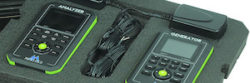 Murideo Fox & Hound: generador y analizador HDMI para test de instalaciones audiovisuales
 Lifesize Share eliminates wiring problems in meeting rooms
 OrCam MyEye ayuda a leer a las personas con problemas visuales con algoritmos inteligentes
MediaMarkt Eindhoven implementa una app para localizar productos utilizando la iluminación Led
Atlona da respuesta a los problemas de integración AV en sistemas HDR 4K
A robot therapist helps children with mobility problems
OrCam MyEye ayuda a leer a las personas con problemas visuales con algoritmos inteligentes
MediaMarkt Eindhoven implementa una app para localizar productos utilizando la iluminación Led
Atlona da respuesta a los problemas de integración AV en sistemas HDR 4K
A robot therapist helps children with mobility problems
 TRENDnet responde ante los problemas de vulnerabilidad de código en sus cámaras IP
 El Ministerio de Cultura presenta una aplicación móvil de realidad aumentada para localizar bibliotecas